How to Hide Photos on iPhone Without an App (5 Built-in Methods)
5 ways to hide photos on iPhone using only built-in iOS features, no app required. Step-by-step instructions, pros, cons, and what none of them actually do.
- iOS gives you five ways to hide photos without installing anything. The Hidden album is the most practical.
- Only Notes and Screen Time allow a password separate from your device passcode.
- None of them encrypts your photos. On an unlocked iPhone, everything stays readable.
- Against someone who knows your passcode or can get into your iCloud, you need a vault app.
1. The Hidden Album
Select the photos, tap ..., then Hide, and confirm. They move to Albums > Hidden, which requires Face ID or your passcode to open.
For a deeper breakdown: iOS Hidden Folder vs a Vault App.
2. Lock Photos in Notes
Create a note, tap the camera icon, then Choose Photo or Video. Then tap ..., Lock, and set a separate password. Delete the originals from Photos.
3. Hide the Photos App with Screen Time
Open Settings > Screen Time > Content & Privacy Restrictions, toggle it on, then under Allowed Apps & Features toggle off Photos. The app disappears from the home screen. Reverse the steps to get it back.
4. Move Photos to the Files App
Select the photos, then Share > Save to Files. Choose On My iPhone, create a folder with a boring name ("Documents"), and save. Delete the originals from Photos and Recently Deleted.
5. AirDrop to a Secondary Device
With an old iPhone or iPad: select the photos, Share > AirDrop, and send them to the second device. Delete them from your main iPhone, Recently Deleted included, and keep the old device somewhere safe.
Quick comparison
| Method | Encryption | Separate password | Practical daily use | Risk level |
|---|---|---|---|---|
| Hidden Album | No | No (device passcode) | Yes | Medium |
| Notes | No | Yes (optional) | No | Medium |
| Screen Time | No | Yes (Screen Time code) | No | High |
| Files app | No | No | No | High |
| AirDrop to 2nd device | No | No | No | High |
The limitation every method shares
None of them encrypts your photos: they move them to a different album, app, or device. iOS encrypts the filesystem at the hardware level, but that encryption becomes transparent once the phone is unlocked.
When you actually need a vault app
Against a glance at your camera roll, the Hidden album is enough. Against someone who knows your passcode, has access to your iCloud, or can compel access through legal authority, you need per-file encryption with a separate key.
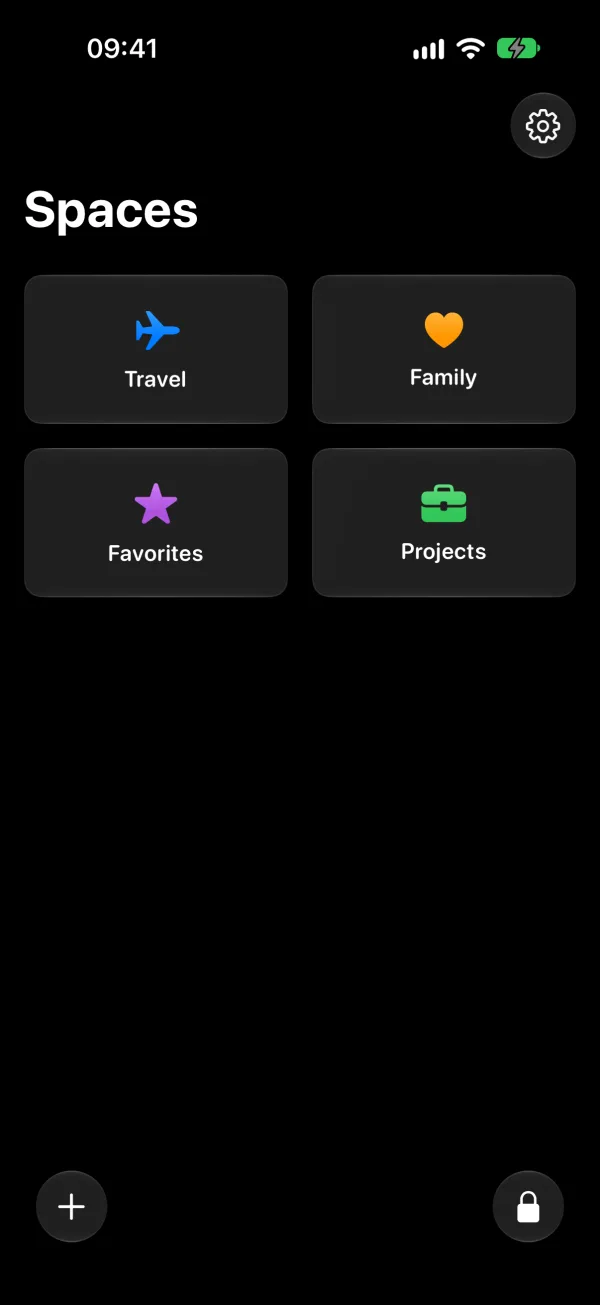
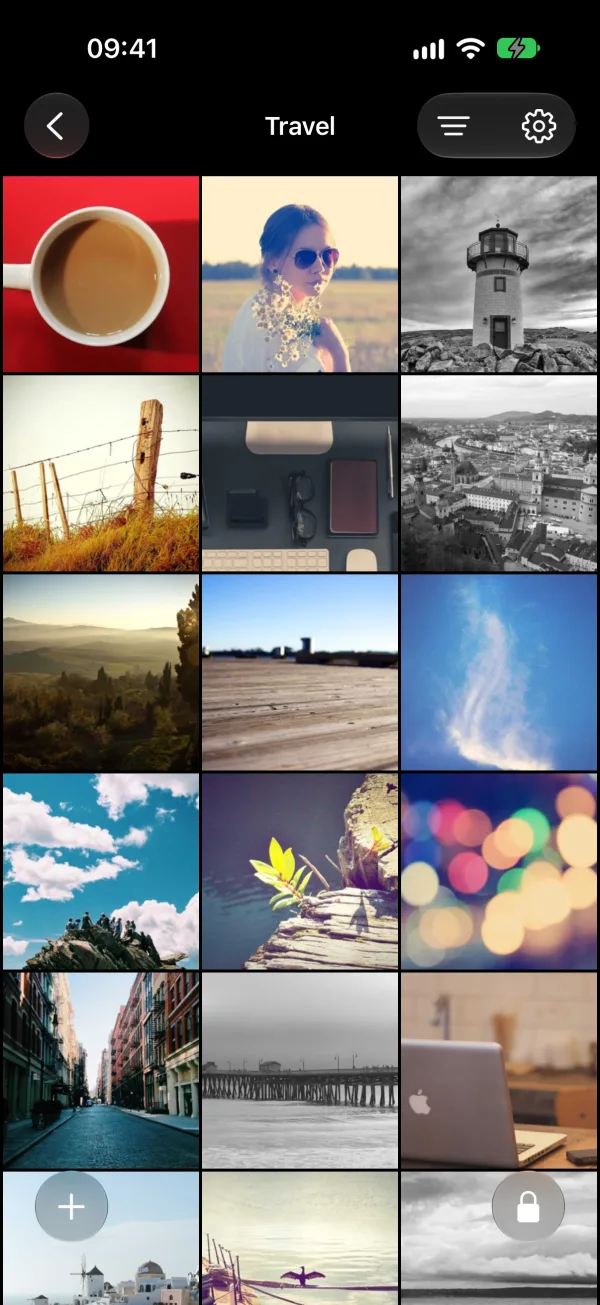
A vault app encrypts each photo individually, behind a PIN independent of your device passcode. With the phone unlocked, the vault stays locked and the filesystem shows only encrypted blobs.
Most vault apps, however, store your photos on their servers and charge subscriptions. Check what they actually do before trusting them with your photos.
Related reading:
- How to Hide Photos on iPhone, Every Method Compared: including vault apps and encrypted options
- iOS Hidden Folder vs a Vault App: what the Hidden folder misses
- Are Photo Vault Apps Actually Safe?: what Keepsafe, HiddenVault, and others do with your photos
- Photo Encryption on iPhone: What It Actually Means: the difference between OS encryption and app encryption