How to Hide Photos on Mac: 4 Methods, From the Hidden Album to an Encrypted Vault
The Hidden album, a locked note, an encrypted disk image, or a vault app: what each method hides on a Mac, what it leaves exposed, and how Inner Gallery for Mac works.
- The Hidden album in Photos is locked with the same password as the Mac, and its photos still sync to iCloud.
- An encrypted disk image has its own password, but everything inside is readable as long as it is mounted.
- FileVault protects a Mac that is switched off, not photos on a Mac someone else can use.
- Inner Gallery for Mac (our app) encrypts each file and locks itself when the Mac sleeps or the screen locks.
A Mac is shared more often than a phone: a family computer, a work laptop plugged into a meeting-room screen, a colleague borrowing it for five minutes. macOS has several ways to move photos out of sight, and they differ on one question: what does someone see once they are logged into your session?
Method 1: The Hidden album in Photos
Select one or more photos, then choose Image → Hide (or press Command-L). The photos leave the library view and go to the Hidden album, which you display with View → Show Hidden Photo Album. Apple documents the steps in the Photos user guide.
Since macOS Ventura, the Hidden and Recently Deleted albums are locked by default and open with Touch ID or the login password.
The album protects against someone who scrolls through your library over your shoulder. It doesn't protect against a person who knows the Mac's password, which is common on a family computer. The same limits apply on iPhone, as described in Can Someone See Your Hidden Photos on iPhone?.
Method 2: A locked note
The Notes app can lock a note with the login password or with a password of its own. Drag photos into a note, lock it, then delete the originals from Photos and empty Recently Deleted.
This works for a handful of images. Notes has no grid and no albums, videos are awkward to handle, and you have to remember to delete the originals each time.
Method 3: An encrypted disk image
Disk Utility can create a password-protected container that behaves like an external drive. Choose File → New Image → Blank Image, pick a size, and select 256-bit AES encryption. The steps are in the Disk Utility user guide.
The encryption is strong and the password is separate from the Mac's. The weak point is day-to-day use: once the image is mounted, every file inside is visible in the Finder, in Spotlight, and to any app. Nothing ejects it when you close the lid or walk away, and photos are browsed as plain files, without a gallery.
What FileVault does and doesn't do
FileVault encrypts the startup disk. If the Mac is stolen while switched off, the data is unreadable without the password. Once you are logged in, the disk is unlocked and every file is available to whoever uses your session. Keep it on, and count on another layer for photos that should stay private while the Mac is in use.
Method 4: An encrypted vault app
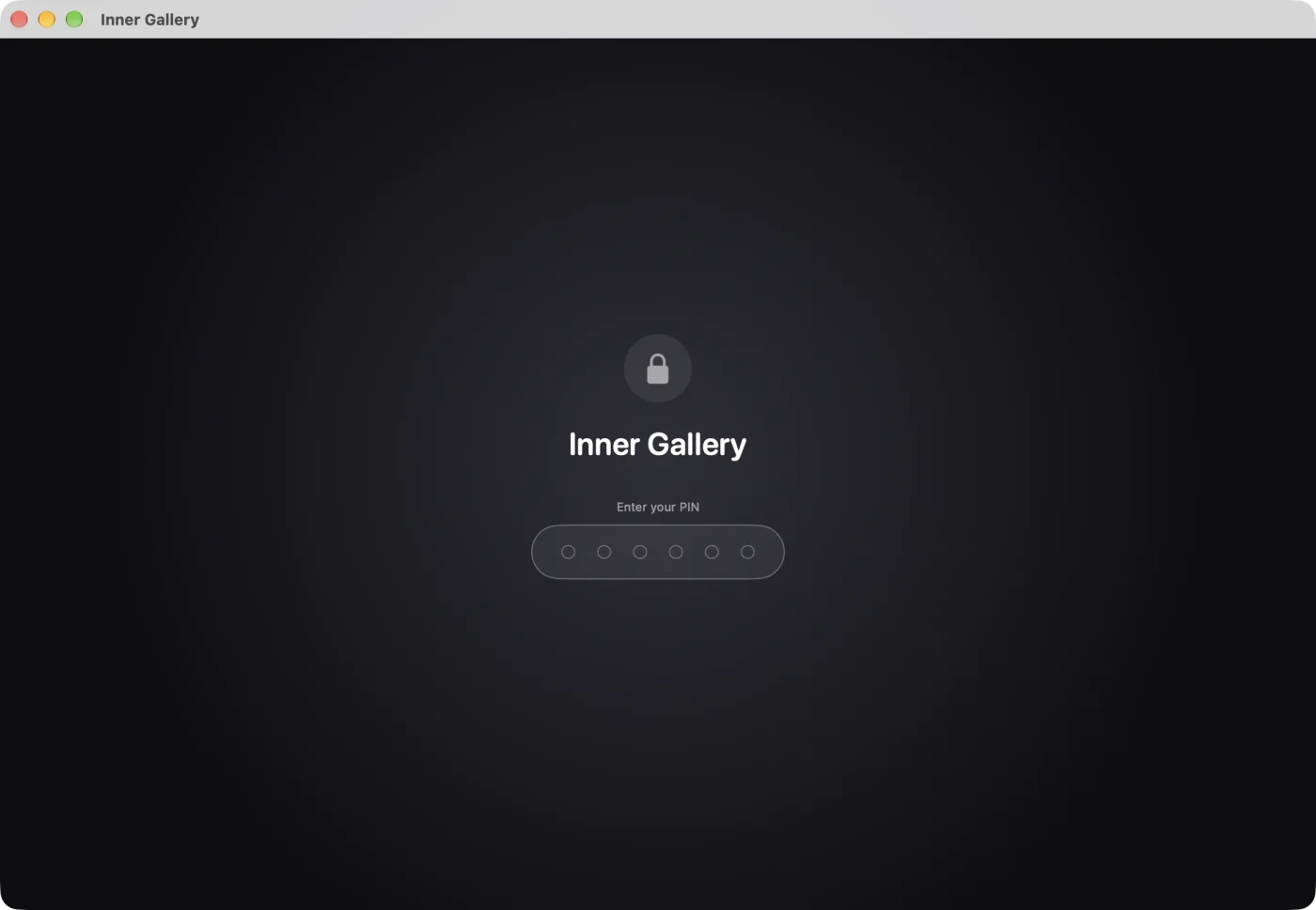
A vault app keeps photos outside the Photos library and encrypts each file with a key that the Mac's password does not open. Inner Gallery, our app, is now on the Mac App Store as a native Mac app (macOS 26 or later).
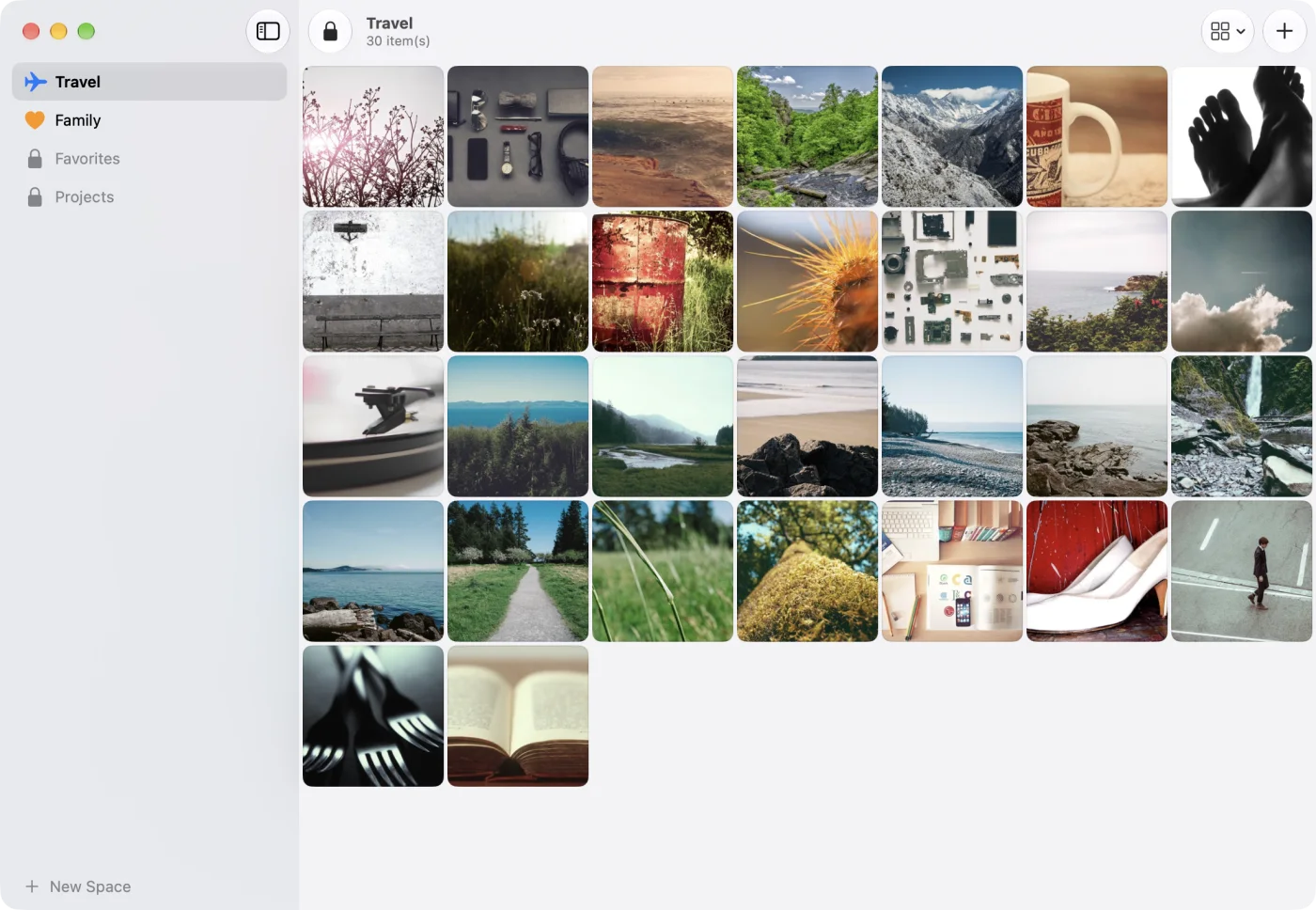
The app has the usual Mac shortcuts: Command-N creates a space, Shift-Command-I imports, Command-E exports a space, and Command-L locks the vault at once.
If you already use Inner Gallery on iPhone, the Mac is set up with your PIN and receives the same spaces through iCloud. Files are encrypted on the device before they reach iCloud, and Jungle Labs has no server and no access to the keys, as explained in Why Inner Gallery Works Without a Server.
There is no PIN recovery. Nobody can read your photos without the PIN, including us, so keep the PIN somewhere safe and export your spaces if you don't use sync.
The four methods compared
| Hidden album | Locked note | Encrypted disk image | Inner Gallery | |
|---|---|---|---|---|
| Secret separate from the Mac's password | No | Optional | Yes | Yes |
| Encrypted while the session is open | No | Yes, when locked | No, when mounted | Yes, when locked |
| Locks by itself | With the session | With the session | No | Yes |
| Photo and video gallery | Yes | No | No | Yes |
| Stays out of iCloud Photos | No | Yes | Yes | Yes |
| Price | Free | Free | Free | Free, then one-time purchases |
Which one to choose
Related reading:
- How to Hide Photos on iPhone: the same comparison for iPhone, from the Hidden album to encrypted vaults
- How Photo Encryption Works on iPhone: what the system encrypts and what an app adds
- What Is a Panic PIN?: a second code that opens a decoy space