The iPhone Photo Privacy Checklist (2026 Edition)
10 actionable steps to lock down photo privacy on iPhone in 2026. From Advanced Data Protection to app permissions to encrypted vaults.
- Most of the photo settings that matter are off by default or buried deep in Settings.
- Advanced Data Protection counts most: without it, Apple holds the keys to your iCloud Photos.
- For the most sensitive photos, a local encrypted vault keeps them out of Photos, iCloud, and backups.
1. Enable Advanced Data Protection for iCloud
Setting: Settings → Apple ID → iCloud → Advanced Data Protection → Turn On
Details are in Apple's page on Advanced Data Protection (ADP) and in Is iCloud Photos Really Private?.
Verify: the ADP toggle shows green. All devices on the account must run iOS 16.2 / macOS 13.1 or later. On iOS 26, the setting is in the same location.
2. Audit app photo permissions
Setting: Settings → Privacy & Security → Photos
From iOS 17 through iOS 26, every app listed here has one of four access levels.
| Level | Good to know |
|---|---|
| Full Access | Often requested without need |
| Limited Access | Enough for selecting specific photos |
| Add Photos Only | Enough for saving images |
| None | No access to the library |
Verify: downgrade any app that doesn't need the full library.
3. Disable location metadata in photos
Setting: Settings → Privacy & Security → Location Services → Camera → Never
With location enabled, every photo embeds its GPS coordinates in the EXIF metadata. They stay with it when it is shared, backed up, or synced.
Verify: take a test photo, open it in Photos, and swipe up. No location should appear on the map.
4. Lock the Hidden album
Setting: Settings → Photos → Use Face ID (or Use Touch ID) for Hidden Album → On
See iOS Hidden Folder Is Not Enough and Apple's page on the Hidden album.
Verify: Photos → Albums → Utilities → Hidden should prompt for Face ID or Touch ID.
5. Review iCloud Shared Albums
Setting: Photos → Albums → Shared Albums → review each one
These albums are stored on Apple's servers, outside iCloud Photos sync. Every participant can see the photos, and removing one doesn't necessarily delete their cached copies, according to Apple's shared albums documentation.
Verify: remove from each album any photo other participants shouldn't see.
6. Disable iCloud.com access (optional)
Setting: Settings → Apple ID → iCloud → Access iCloud Data on the Web → Off
When this is on, your full iCloud Photo Library can be browsed at iCloud.com from any web browser. If your credentials are compromised, this is the easiest entry point.
Verify: sign in to iCloud.com. Photos should not be accessible.
7. Check Shared with You in Messages
Setting: Settings → Messages → Shared with You → toggle off for Photos (or globally)
This feature shows photos received in Messages inside the Photos app, mixed in with your private ones.
Verify: in Photos, the For You tab shows no images under "Shared with You."
Steps 6 and 7 are often overlooked. They close two pathways to your photos that bypass the device lock screen.
8. Review Recently Deleted retention
Setting: Photos → Albums → Recently Deleted → review contents
During that time, the photos remain on the device and in iCloud. For a sensitive deletion, empty the album by hand, as described in How to Permanently Delete Photos on iPhone.
9. Understand iCloud backup implications
Setting: Settings → Apple ID → iCloud → iCloud Backup → review what's included
iCloud Backup includes the photo library unless iCloud Photos is enabled, in which case photos sync separately. Without ADP, Apple holds the keys to backups too. With ADP, the backup is covered.
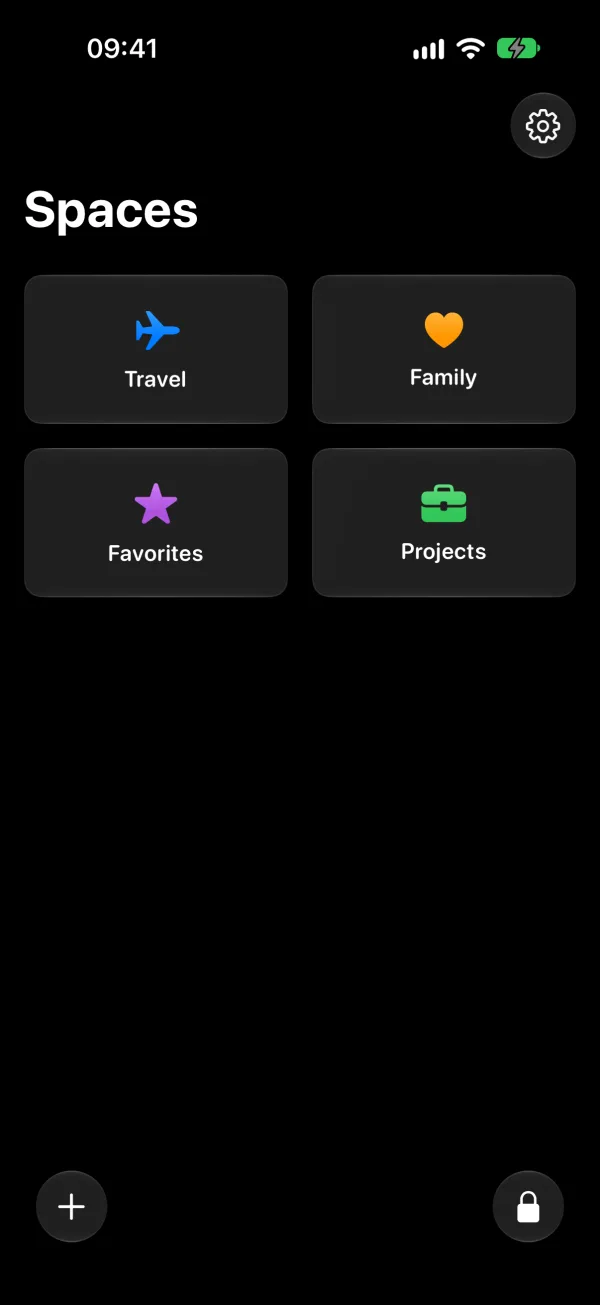
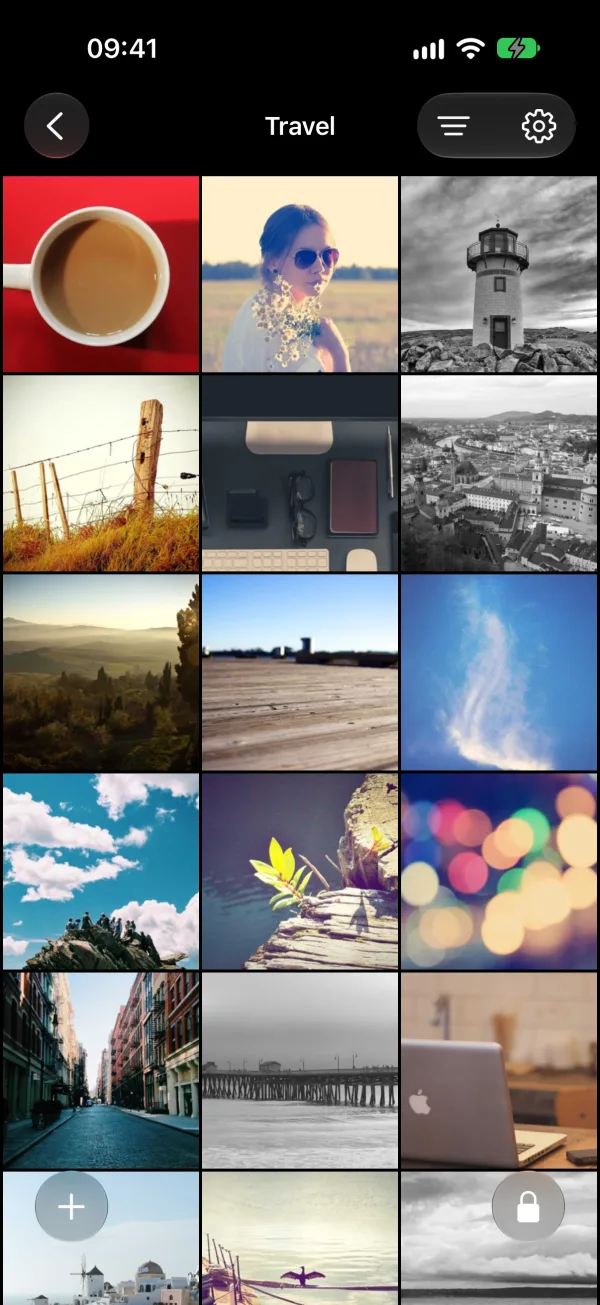
10. Use an encrypted vault for sensitive photos
Setting: store your most sensitive photos in a local encrypted vault, separate from the Photos app.
The Photos app is built for syncing, sharing, and organizing. A vault adds per-file encryption, on-device storage, and no third-party servers. Most vault apps still use cloud storage, as shown in 5 Best Photo Vault Apps for iPhone, so prefer the ones that encrypt locally and keep your keys on the device.
Verify: sensitive photos don't appear in the main Photos library, in iCloud, or in any backup.
Related reading:
- Is iCloud Photos Really Private?: what Apple's fine print says about photo privacy
- How to Hide Photos on iPhone: every method compared
- Are Photo Vault Apps Actually Safe?: most vault apps send your photos to servers
- 5 Best Photo Vault Apps for iPhone in 2026: honest comparison of vault apps
- Which Apps Can Access Your iPhone Photo Library: what Full Access really means and which apps ask for too much
- Photo Encryption on iPhone: What It Actually Means: the difference between OS encryption and app-level encryption